Skip to content
Best AI Tools for Debugging Code (Find & Fix Bugs Faster in 2026)
Quick Navigation: How I Tested • Comparison Table • Risks • Best Tools • FAQ
Debugging is where developers spend a disproportionate amount of their time — and where frustration peaks. Writing code is creative. Debugging code is detective work. You know something is wrong, but finding where, understanding why, and fixing it without breaking something else requires a combination of logical reasoning, domain knowledge, and patience that even experienced developers find draining.
The difficulty scales with codebase complexity. A bug in a simple script might be obvious. A bug in a distributed system with millions of lines of code, dozens of services, and asynchronous processing can take days to isolate. The symptoms appear far from the cause. Error messages are cryptic. Stack traces point to framework internals, not your code. And reproducing the issue consistently is sometimes harder than fixing it.
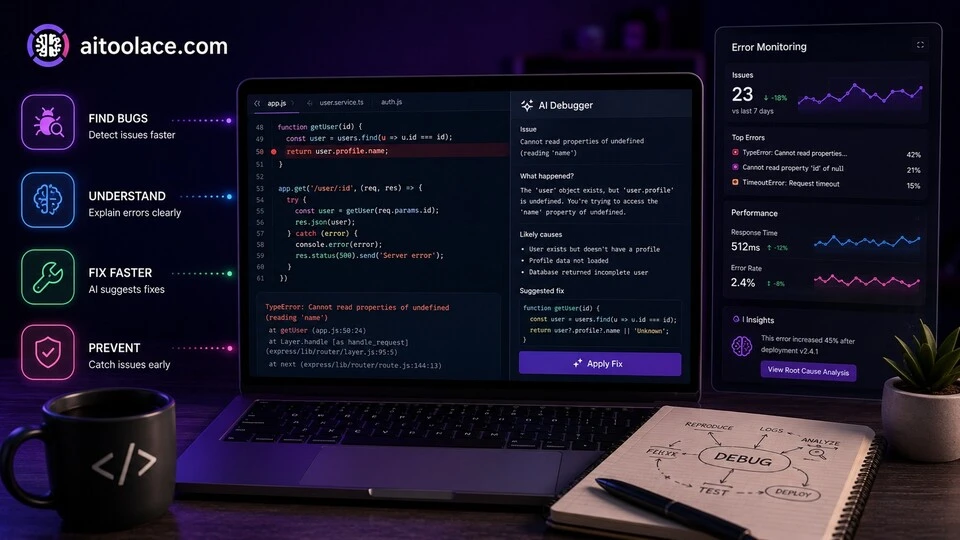
AI debugging tools help at every stage. They explain error messages in plain language. They analyze code and identify likely sources of bugs. They suggest fixes based on the pattern of the error. They scan for common vulnerability patterns. And they help developers understand unfamiliar codebases where bugs are hiding.
For writing code alongside debugging, Best AI Tools for Coding covers the development workflow. For database-related debugging, Best AI Tools for Database Management addresses data layer issues.
Quick answer: Claude is the strongest reasoning tool for understanding complex bugs and suggesting fixes. GitHub Copilot provides the best in-editor debugging assistance. Sentry with AI is the most useful for production error tracking and analysis.
How I Tested These Tools
I evaluated each tool based on what matters for debugging:
- Error explanation — can it translate cryptic error messages into understandable descriptions of what went wrong
- Root cause analysis — does it help identify the actual cause, not just the symptom
- Fix suggestion quality — are the suggested fixes correct and safe, or do they introduce new problems
- Codebase awareness — does it understand the surrounding code context when analyzing bugs
- Prevention — does it help prevent future bugs, not just fix current ones
I reviewed each tool’s features, tested across different programming languages and bug types, and consulted feedback from developers. I did not fabricate fix accuracy statistics or invent debugging time metrics.
Comparison Table
| Tool | Best For | Key Strength | Pricing |
|---|---|---|---|
| Claude | Complex bug reasoning | Deepest analysis of error patterns and root causes | Freemium |
| GitHub Copilot | In-editor debugging | Real-time bug detection and fix suggestions in your IDE | Paid |
| Sentry | Production error tracking | AI-powered error grouping, prioritization, and root cause analysis | Freemium |
| Snyk Code | Security bug detection | Finds security vulnerabilities in your code as you write | Freemium |
| Cursor | AI-native code editor | Editor built around AI debugging and code understanding | Freemium |
| Datadog APM | Performance debugging | AI-powered performance monitoring and bottleneck identification | Paid |
Best AI Tools for Debugging Code
Claude — Best for Complex Bug Reasoning
Some bugs require thinking, not just pattern matching. A race condition in concurrent code. A memory leak that only appears under specific load patterns. A logic error that produces correct results for most inputs but fails for edge cases. These bugs require understanding the system’s behavior at a deeper level than “line 42 has a syntax error.” Claude handles this reasoning better than any other AI tool.
What it does well:
- analyzes complex error scenarios with step-by-step reasoning — tracing through code logic to identify where behavior diverges from intention
- explains error messages, stack traces, and log output in plain language with specific guidance on what caused the issue
- handles multi-file debugging — you can paste several related files and Claude identifies how they interact incorrectly
- suggests fixes with explanations of why the fix works and what side effects to check for
- helps with debugging approaches — “what should I log to isolate this issue” or “how would I write a test that reproduces this”
Where it falls short: Claude can’t run your code, set breakpoints, or inspect runtime state. It reasons about code statically based on what you share — which means it can miss bugs that only manifest at runtime with specific data or timing. You need to provide the relevant code, error messages, and context — Claude can’t explore your codebase independently. And for very large codebases, pasting enough context for Claude to understand the full picture can be impractical.
For writing code alongside debugging, see Best AI Tools for Coding.
Best for: developers who encounter complex bugs that require reasoning through system behavior — especially logic errors, concurrency issues, and bugs in unfamiliar codebases.
GitHub Copilot — Best In-Editor Debugging
GitHub Copilot provides AI debugging assistance directly in your editor — highlighting potential issues as you write, explaining errors inline, and suggesting fixes without leaving your development environment. The real-time assistance catches many bugs before they ever make it into a commit.
What it does well:
- detects potential bugs as you write code — highlighting issues before you run anything
- explains error messages and compilation failures with inline suggestions for fixes
- suggests fixes in context — understanding the surrounding code, imports, and project structure
- Copilot Chat lets you ask questions about specific code blocks and get debugging guidance within the editor
- supports all major languages and frameworks across VS Code, JetBrains IDEs, and other editors
Where it falls short: Copilot’s bug detection is based on pattern matching, not deep reasoning about your code’s intended behavior. It catches common errors (null references, type mismatches, missing error handling) but misses logic errors where the code is syntactically correct but functionally wrong. The suggested fixes are usually correct for simple bugs but can be misleading for complex issues — applying a suggestion without understanding it can mask the real problem. And Copilot works on the code it can see in your editor — it doesn’t understand your full system architecture or runtime behavior.
Best for: developers who want real-time bug prevention as they write code — catching common errors, explaining compilation failures, and providing quick fixes without leaving the editor.
Sentry — Best for Production Error Tracking
Bugs in production are different from bugs in development. They happen to real users, with real data, under real conditions that your test environment didn’t replicate. Sentry captures production errors, groups related issues, provides context (user actions, browser, device, data state), and uses AI to identify root causes and prioritize fixes.
What it does well:
- captures errors in production with full context — stack trace, user session, browser/device info, and breadcrumbs showing what happened before the error
- AI groups related errors intelligently — thousands of individual errors become a manageable list of unique issues
- prioritizes issues based on impact — how many users affected, how often it occurs, whether it’s increasing
- provides AI-generated root cause analysis that suggests where in the code the problem originates
- supports performance monitoring alongside error tracking — identifying slow transactions and bottlenecks
Where it falls short: Sentry captures errors that actually occur in production — it doesn’t find bugs before they affect users. The AI root cause analysis is helpful directionally but doesn’t always identify the correct source, especially for complex distributed system issues. Error grouping occasionally combines unrelated errors or separates related ones, which can mislead prioritization. And Sentry adds overhead to your application — the monitoring code and data transmission consume resources, though usually negligibly.
For broader application monitoring, see the Datadog section below.
Best for: development teams that need to track, prioritize, and debug production errors systematically — especially teams with web applications, mobile apps, or APIs where user-facing reliability matters.
Snyk Code — Best for Security Bug Detection
Security bugs are the most dangerous category of software defect — they don’t just cause errors, they create vulnerabilities that attackers exploit. Snyk Code scans your code for security issues as you write it, identifying patterns that create SQL injection, cross-site scripting, authentication bypass, and dozens of other vulnerability types.
What it does well:
- identifies security vulnerabilities in real time as you write code — catching issues before they reach code review
- covers major vulnerability categories — injection, authentication flaws, data exposure, misconfigurations, and more
- provides fix suggestions specific to each vulnerability with code examples showing the secure approach
- integrates into IDE, CI/CD pipeline, and pull request reviews for multiple detection points
- supports major programming languages with language-specific vulnerability detection
Where it falls short: Snyk Code focuses on security bugs specifically — it doesn’t catch functional bugs, logic errors, or performance issues. The detection is based on known vulnerability patterns, which means novel attack vectors or unusual code structures may not be flagged. False positives can create alert fatigue — some flagged patterns are technically vulnerable but practically unexploitable in your context. And security scanning is one layer of security — it doesn’t replace security architecture review, penetration testing, or secure development training.
For broader cybersecurity, see Best AI Tools for Cybersecurity.
Best for: development teams that want to catch security vulnerabilities during development rather than discovering them in production — especially teams building web applications, APIs, and services that handle sensitive data.
Cursor — Best AI-Native Code Editor
Cursor is a code editor built from the ground up around AI capabilities — not an existing editor with AI plugins, but an editor designed for AI-assisted development. For debugging, Cursor provides deep codebase understanding, natural language code exploration, and AI-powered debugging workflows that feel integrated rather than bolted on.
What it does well:
- understands your entire codebase — you can ask “what could cause this error in the checkout flow” and Cursor searches across all files
- provides natural language codebase exploration — “show me everywhere we handle authentication” finds relevant code without grep commands
- AI debugging workflow lets you describe the bug in plain language and get targeted analysis of likely causes
- applies multi-file fixes that update related code across the project when fixing a bug requires changes in several places
- learns your codebase’s patterns and conventions to provide more relevant suggestions over time
Where it falls short: Cursor requires switching from your current editor, which means losing the muscle memory, extensions, and customizations you’ve built up. The AI codebase understanding works well for moderate-sized projects but can struggle with very large monorepos. The suggestions, while often helpful, need verification — automatically applying multi-file changes without review can introduce new bugs. And as a newer tool, Cursor’s ecosystem is smaller than VS Code’s vast extension marketplace.
For coding tools broadly, see Best AI Tools for Coding.
Best for: developers who want their debugging tools deeply integrated into the editing experience — especially those working on mid-sized projects where full codebase understanding provides the biggest debugging advantage.
Datadog APM — Best for Performance Debugging
Performance bugs — slow database queries, memory leaks, CPU spikes, increasing latency — are a different debugging challenge from functional errors. The system works correctly but performs poorly. Datadog APM monitors application performance continuously, uses AI to identify bottlenecks, and traces requests across distributed systems to pinpoint where time is being lost.
What it does well:
- traces requests across distributed services — showing exactly which service, function, or query is causing latency
- AI identifies performance anomalies automatically — alerting when response times increase, error rates spike, or resource usage changes
- provides code-level profiling that shows which functions consume the most CPU, memory, and time
- correlates performance issues with deployments — identifying when a specific code change caused a regression
- supports all major languages, frameworks, and cloud platforms
Where it falls short: Datadog is a monitoring and observability platform, not a code fixing tool. It identifies where performance problems exist but doesn’t suggest code-level fixes — you need to interpret the data and implement optimizations yourself. The platform is complex and expensive — pricing is per-host and per-feature, which adds up for large deployments. Implementation requires instrumenting your application with Datadog’s libraries, which takes engineering effort. And performance optimization often involves trade-offs (caching improves speed but adds complexity) that Datadog can’t evaluate for you.
For database performance specifically, see Best AI Tools for Database Management.
Best for: engineering teams running production services where performance directly affects user experience and business outcomes — especially teams with distributed architectures where tracing requests across services is essential.
The Real Risks of AI Debugging
1. Applying Fixes Without Understanding
AI suggests a fix. You apply it. The error goes away. But do you understand why it works? Applying fixes you don’t understand creates technical debt — the code becomes a collection of patches that nobody fully comprehends. When the next bug appears in the same area, you’re debugging patches on patches. Always understand what a fix does and why it works before applying it.
2. Fixing Symptoms Instead of Causes
AI debugging tools often suggest fixes that address the immediate error without addressing the underlying design issue that caused it. Adding a null check prevents a NullPointerException, but it doesn’t address why the variable is null in the first place. The quick fix creates silent failures where the system doesn’t crash but also doesn’t work correctly. Ask “why is this happening” before accepting “how to stop the error.”
3. Introducing New Bugs Through AI Fixes
AI-suggested fixes are tested against the specific error they’re addressing. They aren’t tested against your full system. A fix that resolves one bug can introduce others — changing a data type to fix a casting error might break serialization downstream. Always run your test suite after applying AI-suggested fixes, and be especially careful with fixes to shared code.
4. Over-Reliance Weakening Debugging Skills
Debugging is a skill that develops through practice. Developers who rely on AI for every debugging task don’t develop the mental models of system behavior that make experienced developers effective. AI should augment your debugging skills, not replace the learning process that builds them. Use AI for acceleration, not for avoidance.
Which AI Tool Should You Choose?
- Complex bug reasoning → Claude (deepest analysis for logic errors and system-level bugs)
- Real-time in-editor assistance → GitHub Copilot (bug detection and fixes as you write)
- Production error tracking → Sentry (capture, group, and prioritize production errors)
- Security vulnerability detection → Snyk Code (find security bugs before production)
- AI-native debugging editor → Cursor (full codebase understanding for debugging)
- Performance debugging → Datadog APM (trace, profile, and optimize application performance)
Best starting approach: Use GitHub Copilot or Cursor for real-time bug detection while writing code. Use Claude for complex bugs that require reasoning through system behavior. Add Sentry when you deploy to production and need error tracking. Add Snyk Code when security is a priority. Add Datadog when performance optimization becomes important.
Frequently Asked Questions
What is the best AI tool for debugging code?
Claude is the best for complex bugs requiring deep reasoning. GitHub Copilot is best for catching bugs while you write. Sentry is best for tracking production errors. The right choice depends on whether you’re debugging during development (Copilot, Cursor), analyzing complex issues (Claude), or monitoring production (Sentry, Datadog).
Can AI find all bugs in my code?
No. AI finds bugs that match known patterns (common errors, security vulnerabilities, performance anti-patterns). Logic errors where the code does something different from what you intended — but the code itself is structurally valid — are harder for AI to detect because AI doesn’t know your intention. AI catches many bugs but doesn’t replace thorough testing and code review.
Should I trust AI-suggested fixes?
Trust but verify. AI fixes are usually correct for common error patterns. For complex bugs, AI suggestions may address symptoms rather than root causes, or may introduce side effects in parts of the system the AI doesn’t see. Always understand why the fix works, check for side effects, and run your test suite after applying changes.
How do I debug with AI effectively?
Provide complete context — the error message, the relevant code, what you expected to happen, and what actually happened. Describe the conditions under which the bug occurs. Ask the AI to explain its reasoning, not just provide a fix. And verify the fix against your understanding of the system before applying it.
Can AI prevent bugs before they happen?
Yes, partially. Real-time code analysis (Copilot, Cursor, Snyk Code) catches many common errors before they enter the codebase. AI-assisted code review identifies potential issues during pull requests. And AI-powered testing tools generate test cases that expose edge cases you didn’t consider. Prevention is always more efficient than detection.
How much do AI debugging tools cost?
GitHub Copilot costs $10-19/month. Cursor has a free tier. Sentry has a generous free tier for small projects. Snyk Code has a free plan for individual developers. Datadog pricing varies by usage. Most individual developers can build an effective AI debugging toolkit for $10-20/month, with Sentry and Snyk free tiers covering production monitoring and security scanning.
Related AI Tools Guides
- Best AI Tools for Coding
- Best AI Tools for Database Management
- Best AI Tools for Cybersecurity
- Best AI Tools for Task Management
- Best AI Tools for Automating Workflows
Explore all AI tools → Browse by profession and use case
Last updated: June 2026